- Breadboard
- Arduino UNO
- USB cable
- Red LED
- Yellow LED
- Green LED
- 3 x 220 Ohm resistor
- 10 kOhm resistor
- 1 kOhm resistor
- Button
- M-M jumper wires
- M-F jumper cables
- 0.1 microFarad Capacitor
- INA260 current monitor
What You'll Learn
- Using digital pins on an Arduino
- Using buttons
- Debouncing buttons
Wire up the following circuit featuring red, yellow and green LEDs driven by digital pins 2, 3 and 4.
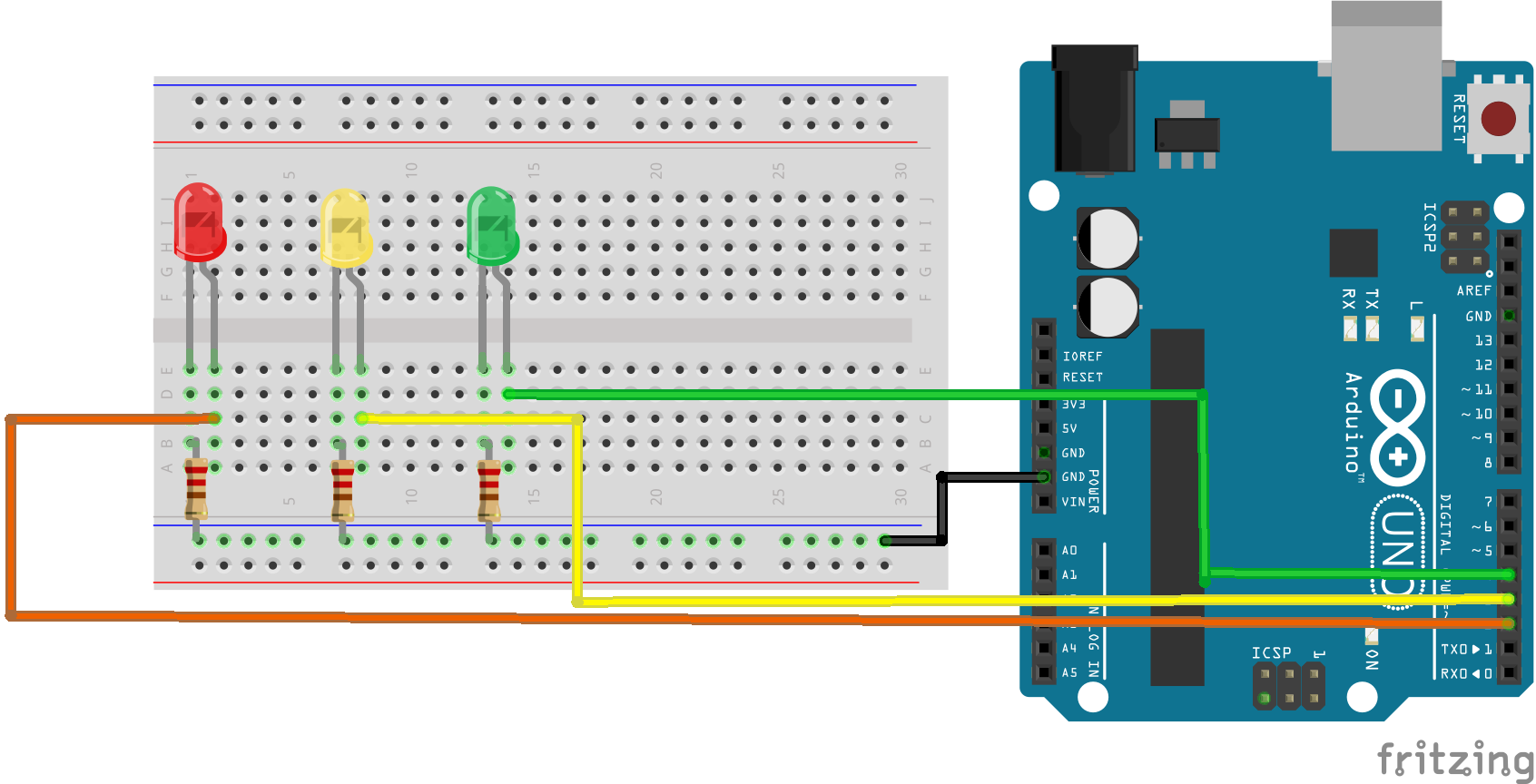
Upload the following basic sketch to your Arduino, which blinks the red LED.
#define redLED 2

void setup() {
  // set digital pin 2 to act as an output
   pinMode(redLED, OUTPUT);
}

void loop() {
  digitalWrite(redLED, HIGH);   // turn the LED on (HIGH is the voltage level)
  delay(1000);                  // wait for a second
  digitalWrite(redLED, LOW);    // turn the LED off by making the voltage LOW
  delay(1000);                  // wait for a second
}
Your task is to modify and extend the sketch to make a traffic light. The actual colour sequence of UK and European traffic lights is as follows:
Green
Amber (yellow in this example)
Red
Read and Amber
Green
Choose appropriate timings for the sequence, bearing in mind that you will be asked to demonstrate your traffic light to the lab tutor, so don't make your red or green timings too long!
Now add a button to the circuit as shown below.
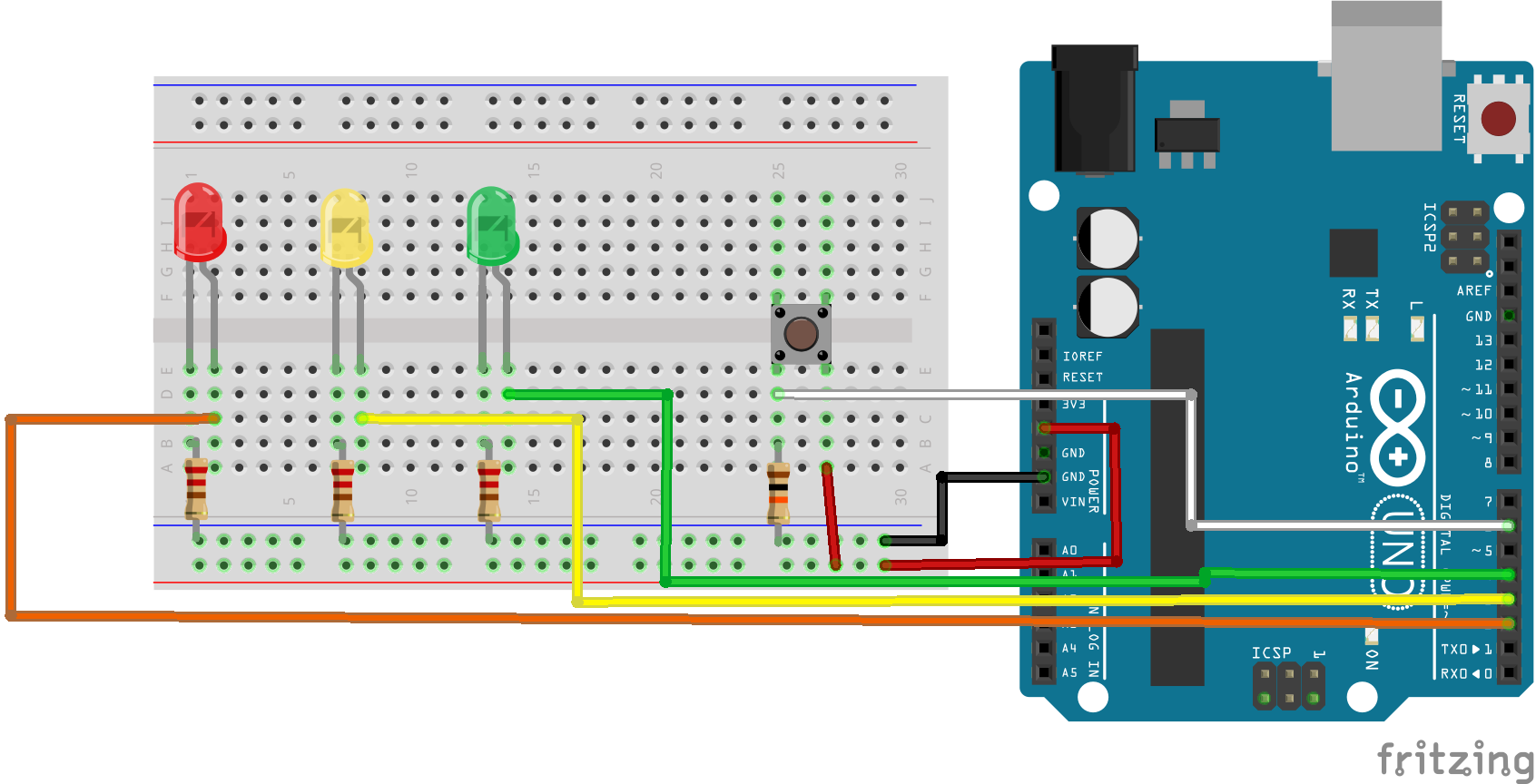
A button is just another form of switch. By default with the switch open (button unpressed), the digital pin 6 is LOW, since it is connected to ground via the 10 kOhm resistor (with the switch open no current flows and therefore no voltage develops across the 10 kOhm resistor).
When the button is pressed, the circuit is closed and digital pin 6 goes HIGH and current will flow through the 10 kOhm resistor to Ground. The 10 kOhm resistor prevents a short circuit between HIGH and Ground and limits the flow of current.
We monitor the state of the button using digital pin 6 as an input.
The operation of the pedestrian crossing should be as follows:
If the traffic light is green when the button is pressed, it should immediately change color to amber, then red as per the normal sequence. If the traffic lights are not green, then pressing the button has no effect.
To help you, here is the skeleton code to drive the green light:
void loop() {
  long lastGreenTime = millis();
  boolean buttonPressed = false;
  while(buttonPressed == false && ( millis() - lastGreenTime < 10000) ){
    //You need to fill in the code here to achieve correct operation of the pedestrian crossing
    //Only two lines are needed
  }
  ...
}
Check your pedestrian crossing is working correctly, then demonstrate it to the tutor.
You may notice that occasionally the Arduino fails to detect a button press. This can occur due to a phenomenon known as bouncing. Bouncing occurs because switches and buttons don't close instantaneously which can resulting in the button state oscillating between LOW and HIGH for a fraction of a second, before fully closing. This can result in the misreading of the state of the button paricularly for fast running loop code that cycles many thousands of times a second.
Bouncing can be tackled in software (i.e. the sketch) or through the use of a capacitor across the button, which acts to smooth out the oscillations. Let's try the latter approach.
Your next task is to add a 0.1 microFarad (100 nF) capacitor across the button as shown in the diagram below.
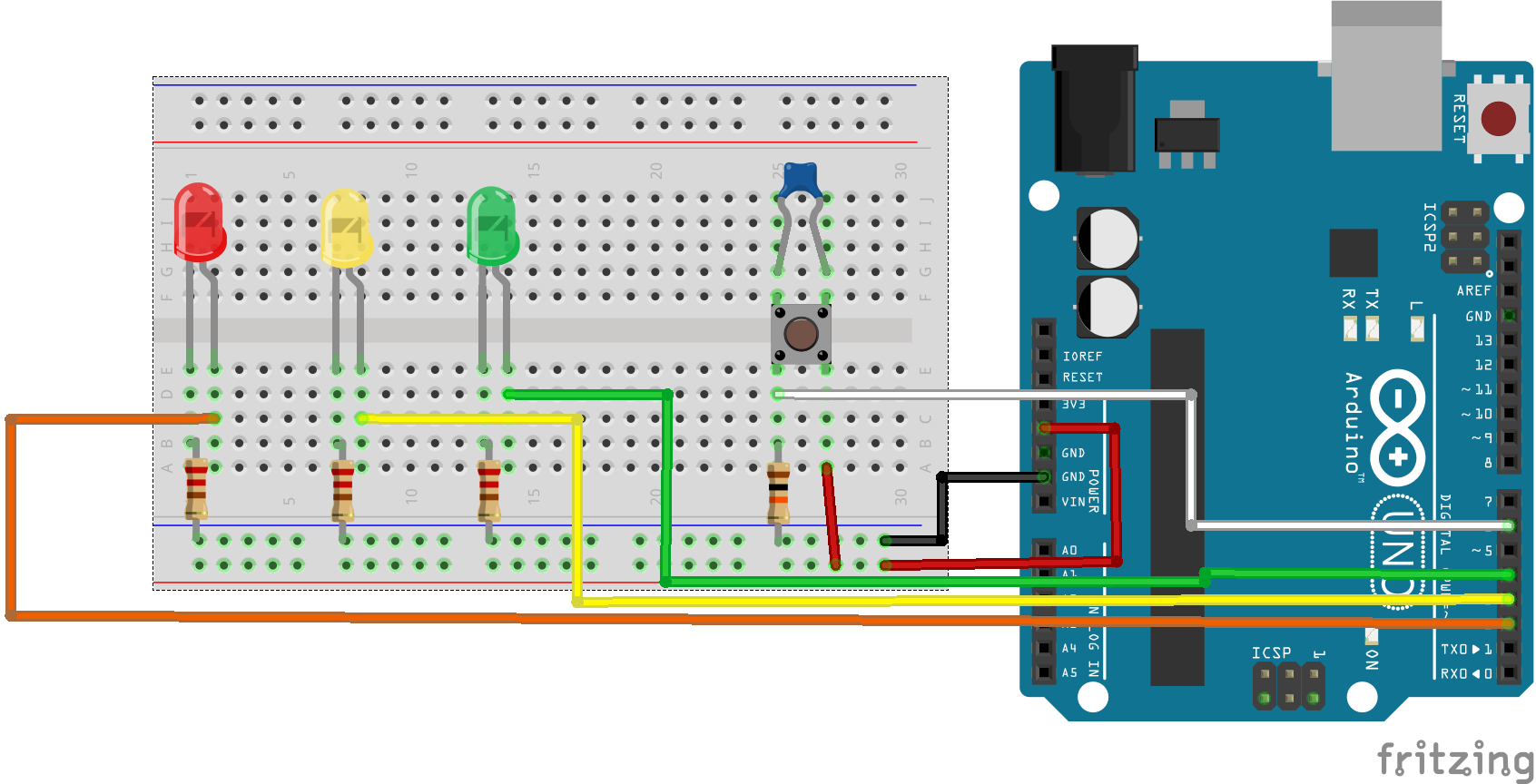
Note the 0.1 microFarad capacitor used here is a ceramic capacitor, these are unpolarised and it doesn't matter which way they are connected (unlike electrolytic capacitors, which are polar and have +ve and -ve terminals).
Check you sketch is still working correctly. If you were previously noticing issues relating to bouncing, have they been resolved now?
In Workshop 1 we saw how you can measure voltage in real time using the analogRead() function. We can measure current consumption ‘on the bench' using a multimeter, but if we want to measure current consumption in real time as an integral part of the system, then we need a specialist sensor; in this example we will use the INA260.
Remember, to measure current we need our sensor to be part of the circuit (current flows through components). If we want to measure the current flowing through each LED we could use three current sensors, one for each LED, but that would be inefficient. Instead, we will use a different configuration for the traffic light circuit, known as ACTIVE LOW. In this configuration we power all LEDs from the 5V pin. We then connect the digital pins to the negative side of the LED (the cathode). To illumimate the LED we set the digital pin to LOW: this creates a potential difference (voltage) across the LED causing current to flow through the LED and the LED to light up. To switch off the LED we set the digital pin to HIGH: in this state both the anode (+ve) and cathode (-ve) are both at 5V so there is no potential difference across the LED and no current flows.
Wire the circuit up as shown in the diagram below, note that the resistors now connect between +ve terminal of the LED (anode) and the +ve rail of the breadboard.
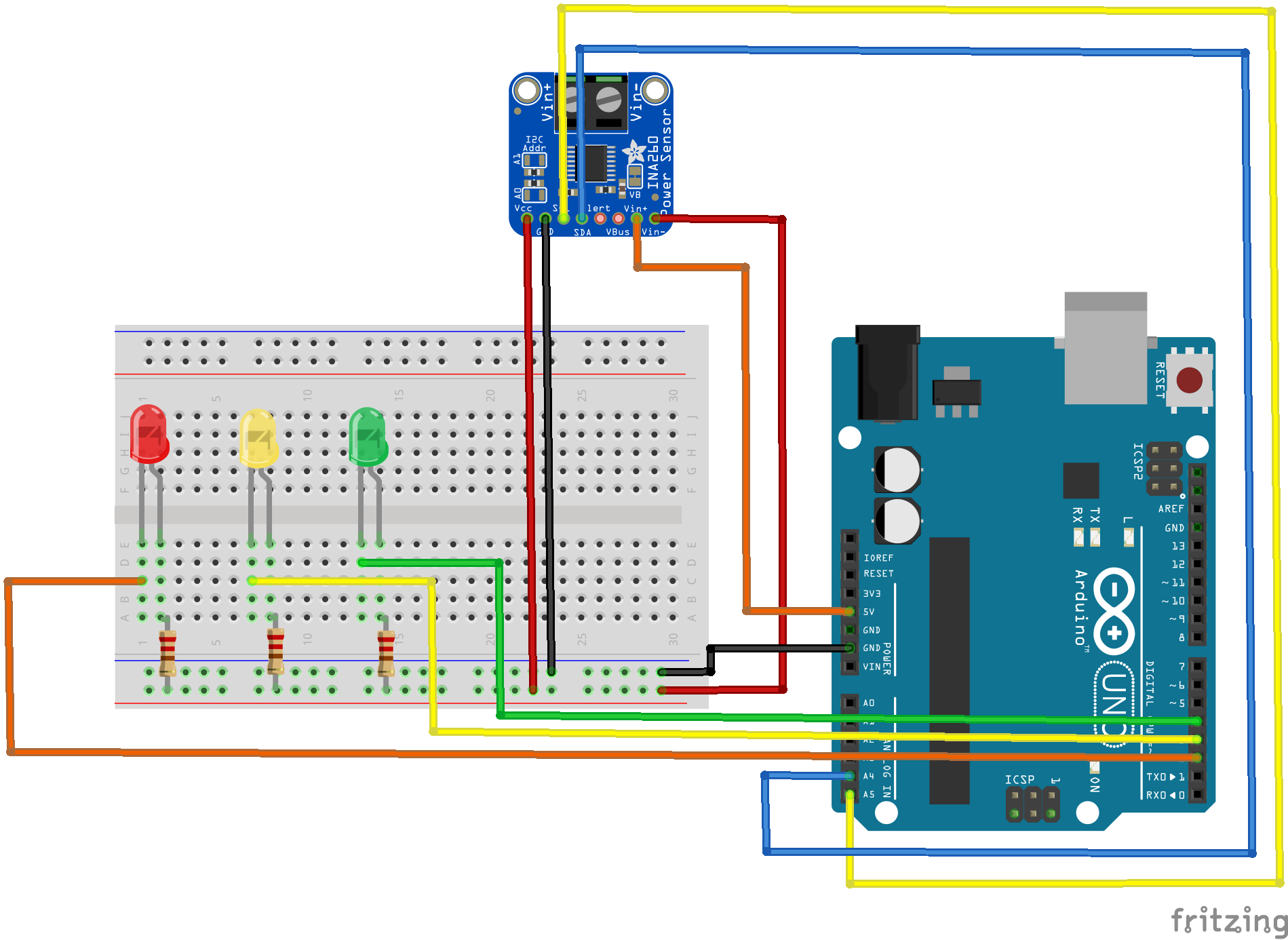
The current sensing terminals of the INA260 go between the 5V pin (Vin+) and the +ve rail of the breadboard (Vin-) so the current sensor measures the current drawn from the 5V pin by the traffic light circuit. The INA260 outputs voltage and current measurements using the I2C protocol, so we also need to connect the INA260's Vcc, GND, SDA and SCL pins to the microcontroller as shown in the diagram above.
Install the Adafuit INA260 Library using the Arduino IDE library manager. And upload the sketch shown below to the microcontroller.
#include <Wire.h>
#include <Adafruit_INA260.h>

#define redLED 2
#define amberLED 3
#define greenLED 4

Adafruit_INA260 ina260;

void setup() {
  Serial.begin(9600);
  delay(1000);

  // set digital pin 2 to act as an output
   pinMode(redLED, OUTPUT);
   pinMode(amberLED, OUTPUT);
   pinMode(greenLED, OUTPUT);

   digitalWrite(greenLED, HIGH); //Set all LED pins to HIGH as we are using an active low configuration
   digitalWrite(amberLED, HIGH);
   digitalWrite(redLED, HIGH);

    // Initialize I2C communications
  if (!ina260.begin()) {
    Serial.println(F("Critical Error: INA219 sensor not detected. Check A4/A5 wiring."));
    while (1);
  }

}


float busVoltage;
float current_mA;

void loop() {

  busVoltage = ina260.readBusVoltage(); //in milliVolts
  Serial.print("Bus voltage=");
  Serial.println(busVoltage/1000.0);

  // --- GREEN PHASE ---
  digitalWrite(greenLED, LOW); // turn the LED on by making the voltage LOW
  delay(10); // <--- Wait 10ms for the INA260 hardware register to refresh!
  current_mA   = ina260.readCurrent();
  Serial.print("green current=");
  Serial.println(current_mA);
  delay(10000);

  // --- AMBER PHASE ---
  digitalWrite(greenLED, HIGH);
  digitalWrite(amberLED, LOW);   // turn the LED on by making the voltage LOW
  delay(10); // <--- Wait 10ms for the INA260 hardware register to refresh!
  current_mA  = ina260.readCurrent();
  Serial.print("amber current=");
  Serial.println(current_mA);
  delay(2000);

  // --- RED PHASE ---
  digitalWrite(amberLED, HIGH);
  digitalWrite(redLED, LOW);   // turn the LED on by making the voltage LOW
  delay(10); // <--- Wait 10ms for the INA260 hardware register to refresh!
  current_mA = ina260.readCurrent();
  Serial.print("red current=");
  Serial.println(current_mA);
  delay(5000);

  // --- RED AND AMBER PHASE ---
  digitalWrite(amberLED, LOW); // turn the LED on by making the voltage LOW
  delay(10); // <--- Wait 10ms for the INA260 hardware register to refresh!
  current_mA = ina260.readCurrent();
  Serial.print("red and amber current=");
  Serial.println(current_mA);
  delay(2000);

  // --- RESET ALL ---
  digitalWrite(amberLED, HIGH);
  digitalWrite(redLED, HIGH);

}
Open the serial monitor. You should be able to see the voltage output by the 5V pin and the current consumed by the LEDs as the traffic light moves through its phases. You might notice the current measurements jumping around a bit, for example green current changing from 10 mA to 8.75 mA from iteration to iteration. What you are seeing here is an excellent demonstration of quantisation noise and the resolution limits of the INA260's 16-bit Analog-to-Digital Converter (ADC). Because the INA260 handles up to 15 Amps over its 16-bit data register, its minimum step resolution is mathematically locked into increments of 1.25 mA.